
Clinic team
Create your account
Sign up, confirm your email, and finish account setup.
Clinic owners and solo RMTs create the ClinicGem account. Staff and practitioners join later from an invite — they do not use this signup.
Sign up
- Open Get Started or go to Sign Up.
- Enter your email and a password (at least 8 characters, mixed case, and a number).
- If you clicked a pricing card, you will see the account type and plan you picked. Generic Get Started buttons do not lock a plan.
- Check your email and confirm the address.
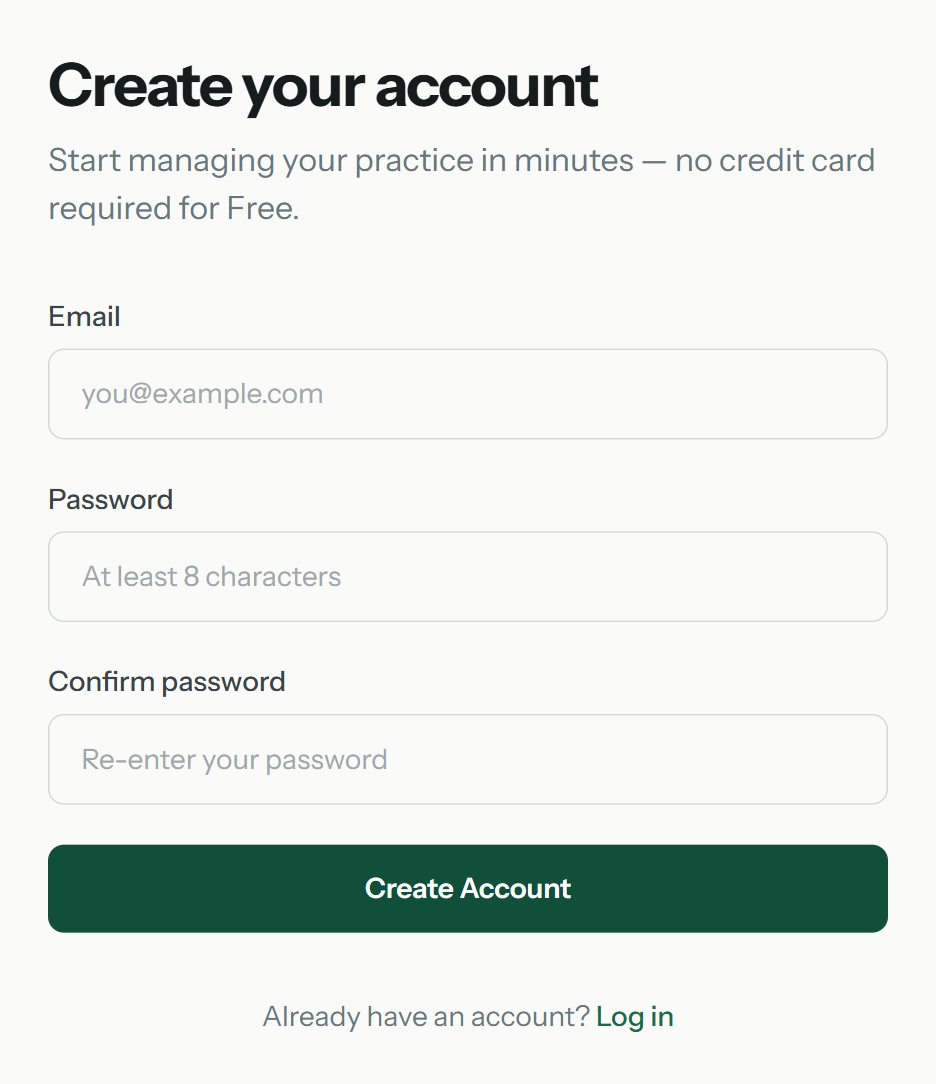
Sign Up from a generic Get Started link — no plan is locked yet.
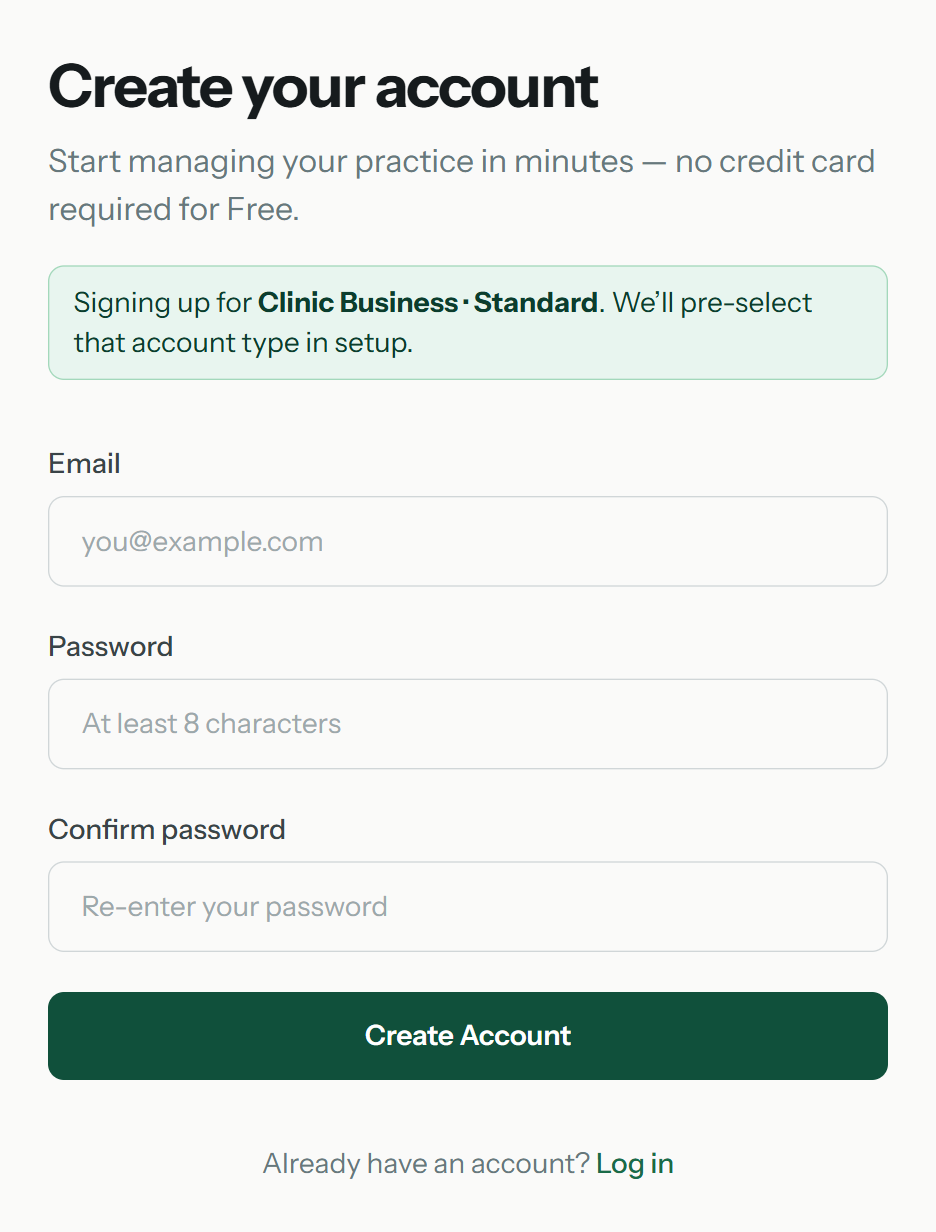
After a pricing card, Sign Up shows the account type and plan you picked.
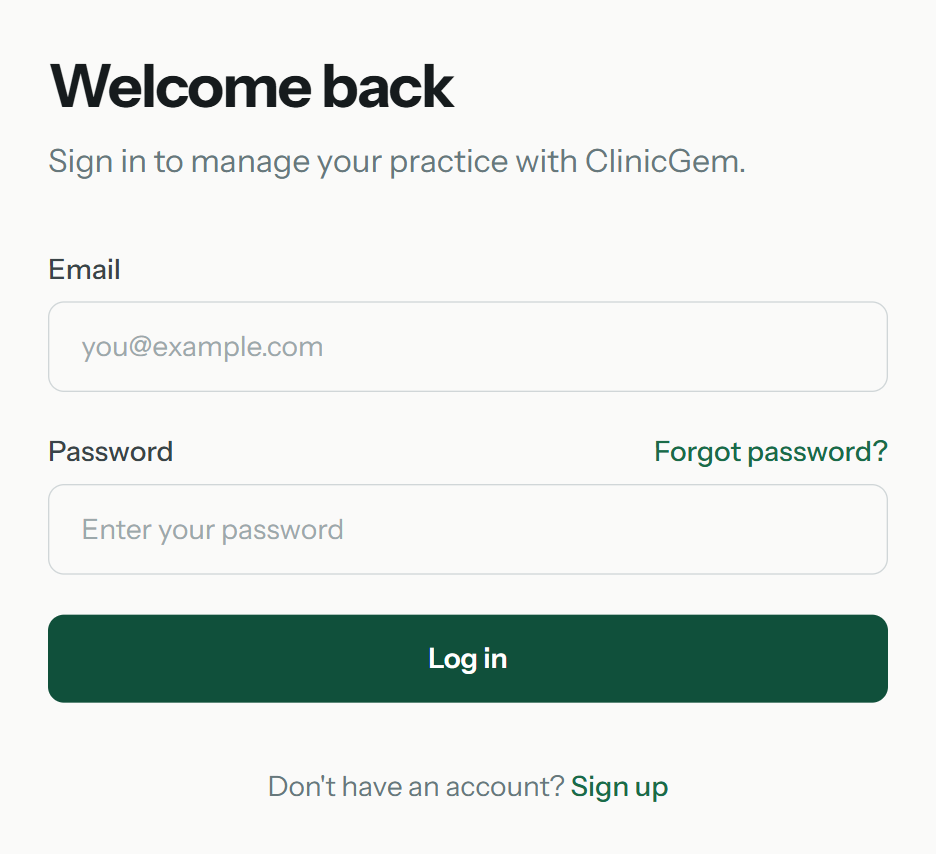
Sign In — same page staff and owners use after they already have an account.
Forgot your password
- On Log in, select Forgot password?
- Enter the email you use to sign in and select Send reset link.
- Open the email and choose a new password (at least 8 characters).
The form always says the email was sent, even if no account uses that address. If you do not get a message, check spam or try the address you signed up with.
Account setup
After you confirm email, Account setup has three steps:
- Account type — Solo RMT or Clinic Business.
- Profile — your name and contact details.
- Plan — Free, or a paid plan that continues to Stripe Checkout.
If you started from a pricing card, account type is pre-selected and a matching paid plan can skip the picker and open Checkout. Free plans provision right away.
After setup
You land in the dashboard. Solo accounts seed you as the only practitioner. Clinic accounts let you add practitioners and staff next.
Staff invites use a different path. Practitioners accept at Accept Invite from the email your clinic sent. See Invite your team.